
Editing guide
How to Make iPhone Motion Blur Photos Look Like Film
A practical motion-blur film recipe for iPhone photos: softer highlights, restrained grain, believable color, and enough contrast control to keep movement atmospheric instead of messy.
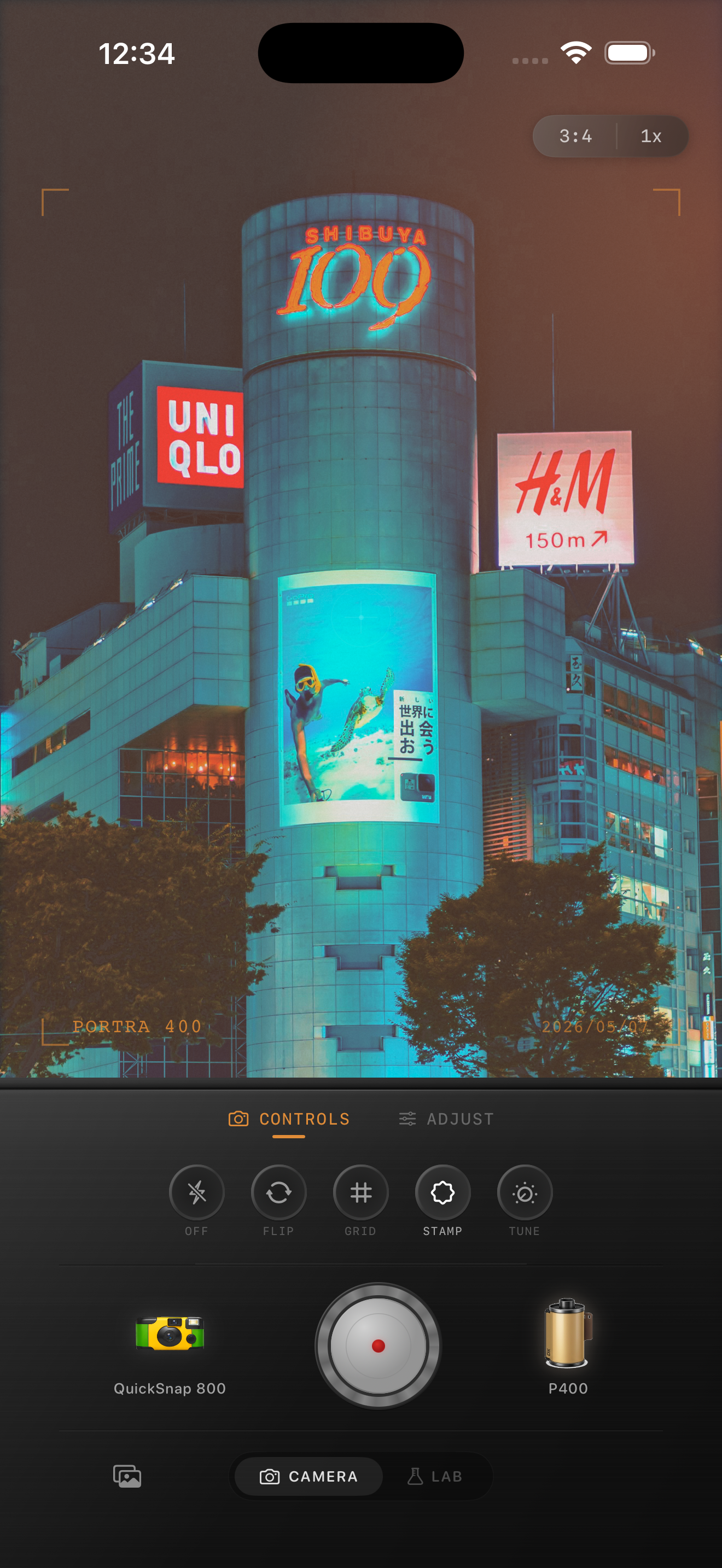
Motion blur already gives you half of the film feeling
A moving subject, a passing car, or a quick handheld pan can make an iPhone frame feel more analog before you touch a single slider. Film photos often feel alive because they keep a little imperfection instead of freezing every edge into clinical detail.
The edit should support that movement rather than trying to sharpen it away. If you overcorrect the blur, the frame starts fighting itself. A better approach is to keep the movement readable, soften the digital edges around it, and let the photo feel like a captured moment instead of a technical mistake.
- Protect bright signs and lamps before adding more texture.
- Keep grain moderate so the blur stays intentional, not dirty.
- Use slight fade only if the shadows still keep shape.
- Let one direction of movement stay obvious instead of smoothing everything.
- Stop when the image feels atmospheric at phone-screen size.
Start with a cleaner baseline than you think
For motion-blur photos, begin around film intensity 72-86%, grain 20-32%, warmth +2 to +8, fade 2-5%, and vignette 4-10%. Those settings usually take the digital edge off while leaving enough contrast for headlights, jackets, storefronts, or street reflections to hold together.
The common mistake is pushing grain because the photo already feels rough. Blur plus heavy grain usually turns into mush. If the frame needs more character, try a softer camera body or slightly calmer contrast before you add more texture.
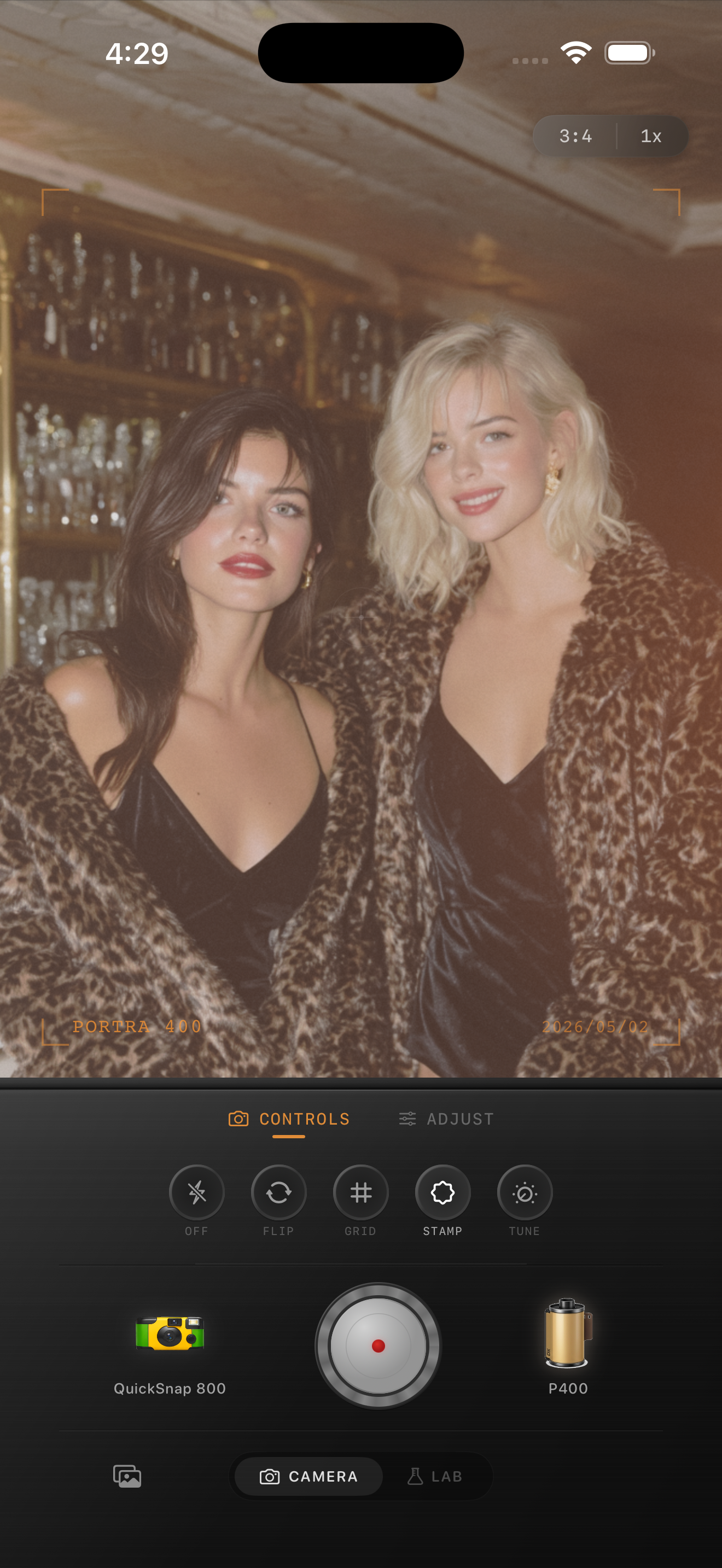
Use color to separate movement from background
Motion-blur frames get hard to read when all the tones drift together. A film-inspired edit works better when the moving subject, the brightest light source, and the surrounding darker areas still feel distinct from each other.
If the scene has neon or mixed city light, avoid warming the whole frame too much. Let cooler signs stay cool, keep skin or streetlights slightly warmer, and use the color difference to preserve shape inside the blur.
Pick the camera mood after you decide what should stay clear
A cleaner 35mm-inspired body works well when the photo includes lettering, architecture, or faces that still need structure. A rougher compact or disposable-inspired body can suit chaotic nightlife or passing-street moments, but it should not erase every edge underneath the motion.
In Nostalgia Cam, choose the body first, then tune grain, warmth, fade, and vignette until the blur feels cinematic and printed rather than accidental and noisy.
Keep motion blur cinematic instead of muddy
Use Nostalgia Cam to pair moving iPhone shots with film-style camera bodies, natural grain, softer contrast, and restrained color so the motion still feels alive while the photo lands like a real analog frame.
FAQ
Can blurry iPhone photos still look good with a film edit?
Yes. Slight motion blur often helps a film-style image feel more natural, as long as highlights, shadows, and grain stay controlled enough for the frame to remain readable.
Should motion-blur photos use more grain?
Usually no. Because blur already reduces detail, heavy grain can make the image collapse. Moderate grain with softer contrast is usually the better choice.