
Editing guide
How to Edit Winter Street Portraits to Look Like Film on iPhone
A practical winter street portrait film recipe for iPhone photos: softer skin tones, restrained blue shadows, clean grain, and enough warmth to keep cold-weather scenes nostalgic instead of lifeless.
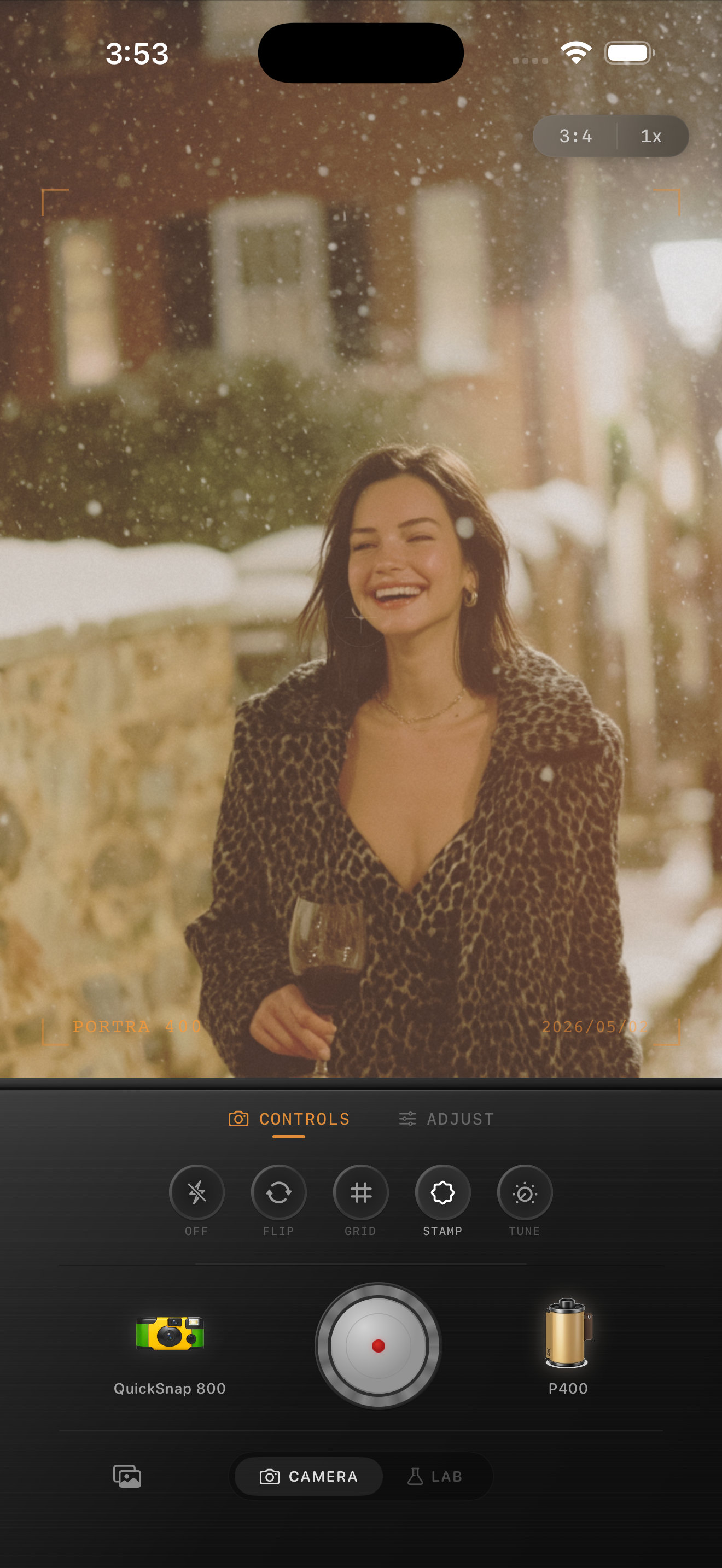
Cold weather portraits need warmth without losing the season
Winter street portraits already have strong mood because the air, coats, and muted light create separation. The problem is that iPhone processing can push skin too pale while snow and sidewalks turn overly crisp.
A believable film edit keeps the cold atmosphere but gives the portrait some human warmth. That usually means softening contrast, warming skin slightly, and letting the shadows stay cool instead of making the whole frame orange.
- Keep warmth focused on skin, not every highlight.
- Use fine to medium grain instead of rough disposable grain.
- Lower sharpness or micro-contrast if the coat texture feels brittle.
- Add a small amount of fade so snow does not look metallic.
- Let the background stay a little subdued behind the subject.
A dependable winter street portrait recipe
Start with film intensity around 74-86%, grain around 24-36%, warmth around +5 to +11, fade around 4-8%, and vignette around 5-10%. This is usually enough to calm the digital edge while keeping the cold-weather color believable.
If the face still looks flat, do not just add more warmth. Try softer contrast first. Winter portraits often improve more from gentler tonal roll-off than from a bigger color push.
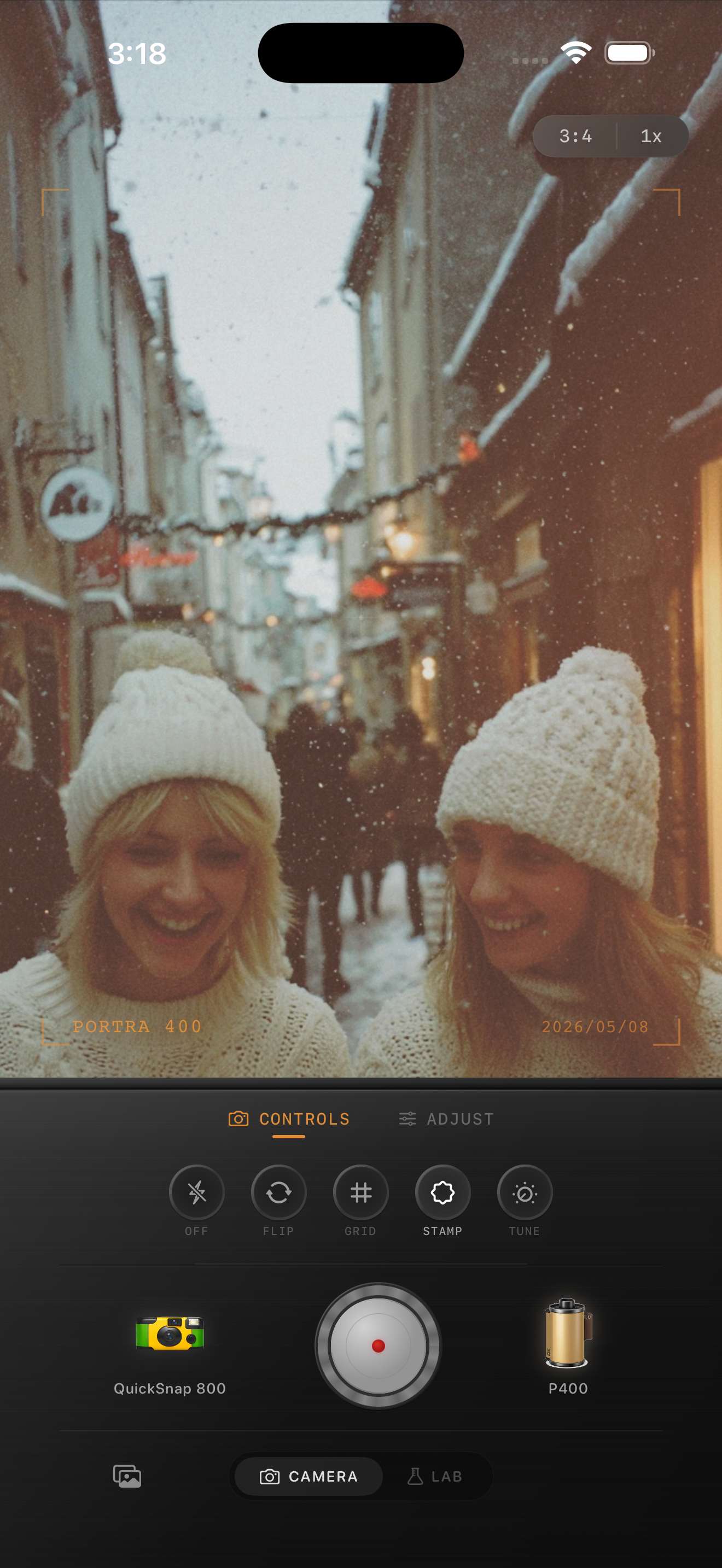
Use the background as part of the film look
Brownstones, sidewalks, parked cars, and bare trees help winter portraits feel photographic because they add texture and depth around the subject. Let those details stay visible instead of fading them into mush.
If the street already has good shape, a cleaner 35mm-inspired camera body usually works better than a rough disposable one. You want the portrait to feel printed, not damaged.
When the edit starts looking fake
Winter street portraits usually break when the shadows go too blue, the cheeks go too orange, or the grain gets too rough for the clean light. If that happens, pull back the extremes and keep the image balanced.
In Nostalgia Cam, start with a cleaner body, choose a film look with gentle warmth, then tune grain and fade until the portrait feels like a real cold-day memory instead of a preset demonstration.
Keep winter portraits soft in Nostalgia Cam
Use Nostalgia Cam to shoot or import winter street portraits, then balance grain, warmth, fade, and vignette so the scene keeps its cold-weather mood without feeling harsh or overedited.
FAQ
Should winter portraits be warmed up a lot to look like film?
Usually no. A small warmth boost on skin works better than warming the whole frame heavily, because winter photos should still feel cold in the air and background.
What grain level works best for snowy street portraits?
Fine to medium grain around 24-36% is a solid starting range. It softens the digital finish without making snow or skin look dirty.