
Editing guide
How to Edit Streetlamp Portraits to Look Like Film on iPhone
A practical iPhone guide for streetlamp portraits: cleaner skin, warm night color, restrained grain, and film-style settings that keep dark sidewalks moody without turning faces muddy.
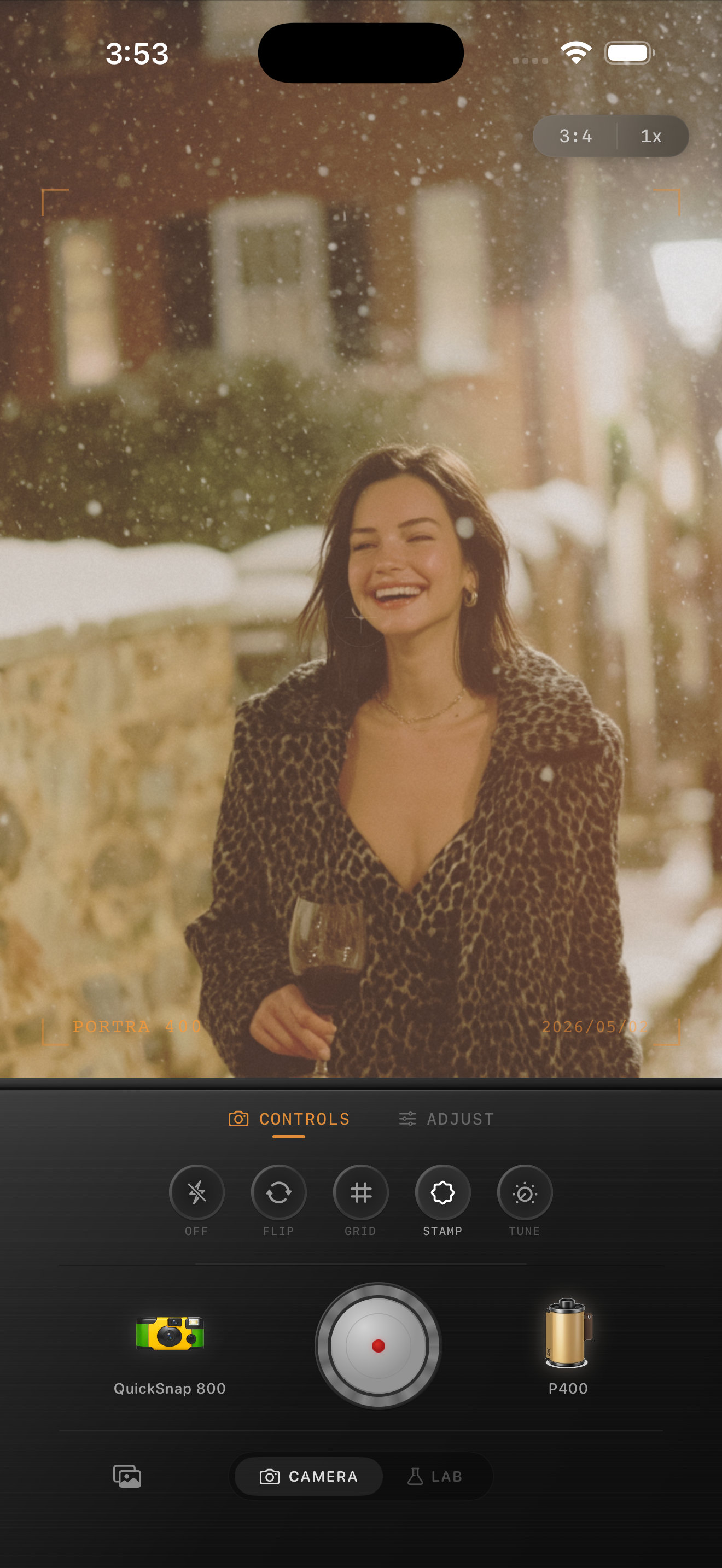
Streetlamp portraits work when one light source leads
Streetlamp portraits already have a strong story because one pool of light is usually shaping the whole frame. That gives you warm highlights on skin, deeper shadow around the edges, and a natural sense of place from the sidewalk, snow, or nearby storefronts.
The goal is not to erase the darkness. The goal is to keep the portrait readable while preserving the lonely, cinematic feeling that makes night portraits worth editing in the first place.
- Expose for the face, not the darkest part of the street.
- Keep grain visible in the shadows but not across the whole face.
- Use warmth carefully so skin stays believable.
- Avoid crushing blacks just to make the scene feel moodier.
- Let the lamp glow stay brighter than the background buildings.
A solid streetlamp-portrait baseline
Start around film intensity 76-88%, grain 28-42%, warmth +4 to +10, fade 2-6%, and vignette 4-8%. That usually gives you enough analog texture to soften the iPhone finish without making the face disappear into the night.
If the portrait was shot in snow, keep warmth a little lower and protect neutral whites first. If it was shot on bare pavement or next to brick and wood, you can lean warmer without the whole scene turning yellow.
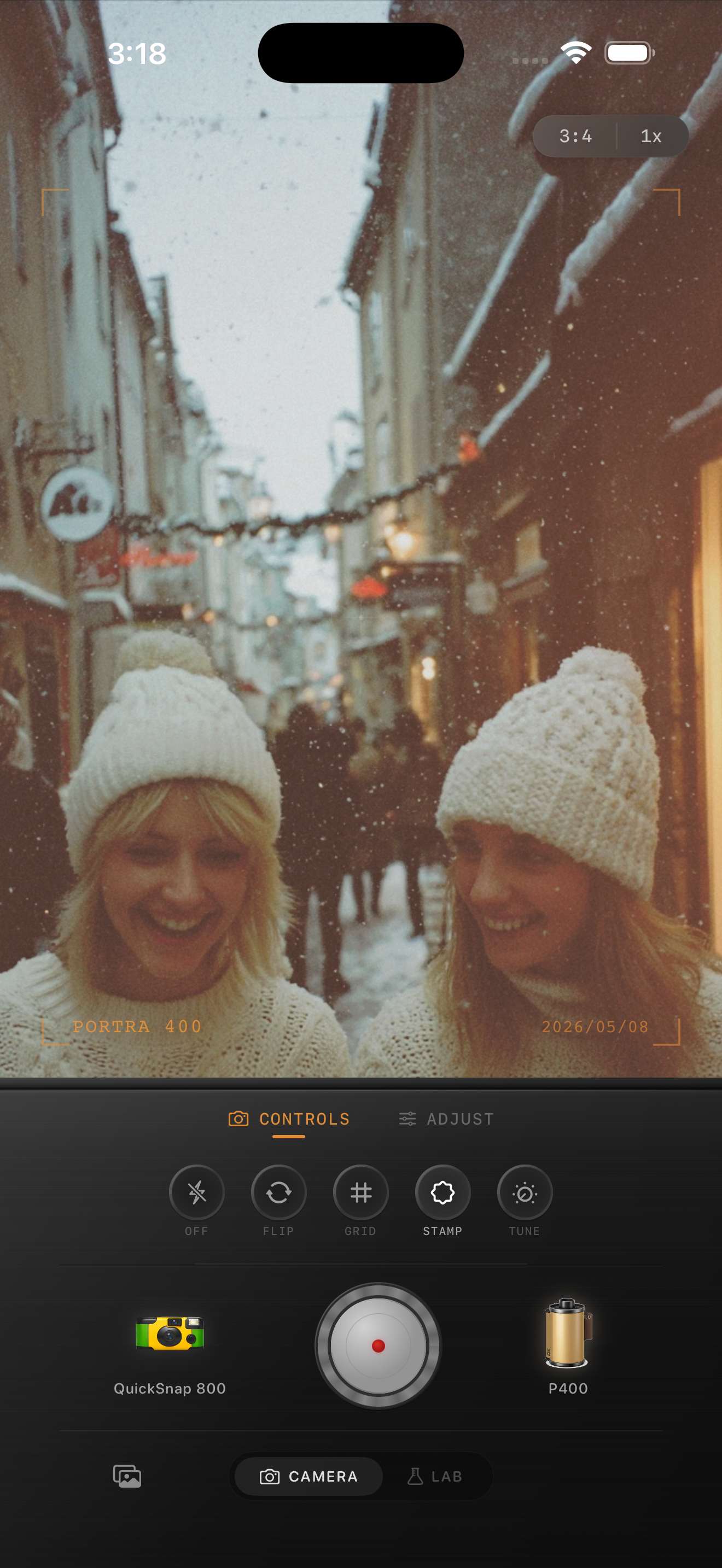
Fix skin before you fix the shadows
Most bad streetlamp edits fail because the editor chases mood first and skin second. Warm night light can turn faces orange, while heavy grain can make cheeks and under-eyes look dirty.
Start by getting skin close, then adjust the darker background. If the shadows still feel too clean, add a little more grain or fade. If the face already looks muddy, changing the background first will not save it.
Choose clean film mood over disposable chaos
Streetlamp portraits usually benefit from a cleaner 35mm-inspired or compact-film treatment rather than a rough disposable-camera effect. You want softness and memory, not random damage everywhere.
Nostalgia Cam makes this easier because you can choose a calmer camera body, then layer in only as much grain, fade, and vignette as the scene can carry.
Shape warm night portraits in Nostalgia Cam
Use Nostalgia Cam to tune camera body, grain, warmth, fade, and vignette so streetlamp portraits keep their night atmosphere while skin, snow, and sidewalk detail stay natural.
FAQ
Should streetlamp portraits look very warm to feel like film?
A little warmth helps, but too much makes skin and snow look unnatural. Film-inspired night portraits usually feel better when warmth is balanced by clear skin tones and readable shadows.
Why do streetlamp portraits look muddy after editing?
They usually get muddy when the edit adds too much grain, fade, or warmth before the face is balanced. Fix skin and highlight shape first, then add texture carefully.