Editing guide
How to Edit iPhone Fireworks Photos to Look Like Film Without Blown Highlights
Give iPhone fireworks photos a gentle film-inspired finish while keeping bright bursts, dark skies, and people nearby from turning into a flat, noisy mess.
Choose a frame with a clear burst or moment
Before editing, compare nearby photos at normal phone size. Choose one where the firework has a readable shape, the horizon is reasonably steady, or the people in the frame add a clear sense of place. A film-inspired finish can soften the digital feel, but it cannot rebuild a burst that is already a featureless white patch.
If every close-up burst is clipped, a wider frame with smaller fireworks may be the better choice. It often leaves more dark sky around the light and gives the scene room to breathe. Keep the original file so you can compare each finished version without applying another filter to an export.
Use the brightest burst as your reference
Open the original beside the edit and look at the brightest part of one firework. You want its center to stay bright, but its outer lines should still feel separate when the source captured them. If a film look makes the bright area spread into a larger white or colored blob, lower the intensity or try a quieter look before adding warmth or grain.
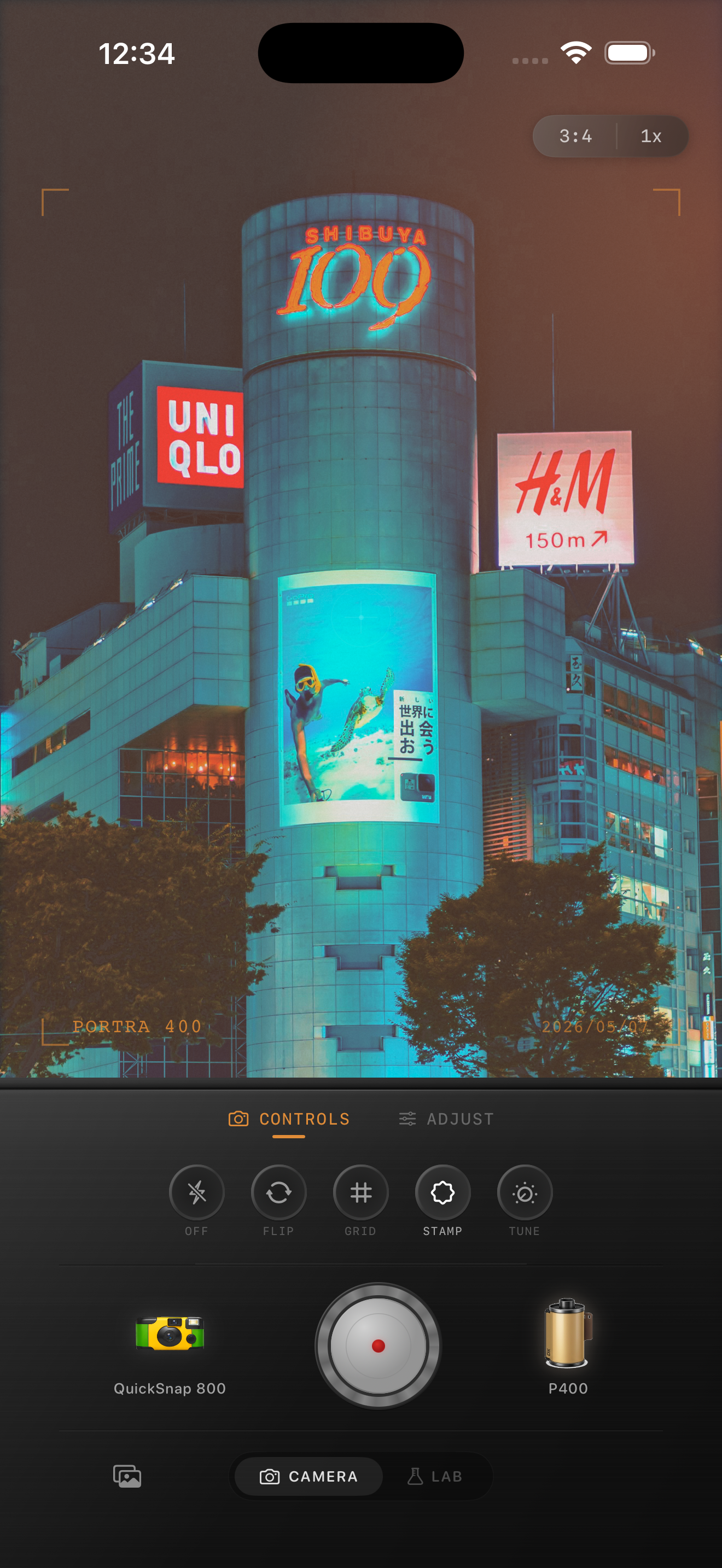
The neon preview above is a night-color reference rather than a fireworks before-and-after. Notice how the small bright signs remain distinct against darker areas. Use the same idea with your own photo: protect the relationship between the light and the sky, rather than trying to make the entire image brighter.
- Check one bright burst at normal viewing size.
- Keep the surrounding sky darker than the light source.
- Reduce film intensity before making a broad brightness change.
- Compare the full image, not only a zoomed-in highlight.
Keep the night sky from turning gray
A little fade can soften a harsh digital black, but too much makes a night sky gray and removes the contrast that gives fireworks their shape. Start with very little fade. Then compare a gentler version with the first one you liked while watching the open sky between bursts.
Do not brighten the whole image just to reveal every building or person at the edge. A fireworks picture can keep large dark areas. The useful goal is enough separation to recognize the setting, while letting the lights remain the visual center.
Let the real color stay believable
Fireworks can contain intense red, blue, green, gold, and purple in the same scene. A warm film look may suit a gold burst but push a red one too far; a cool look can make nearby faces and smoke look gray. Compare a few film looks at moderate intensity and choose the one that keeps the dominant color vivid without making every part of the sky the same color.
If people are in the foreground, use a lit cheek or hand as a second reference. They do not need to look like they were photographed in daylight, but they should not become aggressively orange, purple, or green because of the overall treatment.
Add grain after light and color are settled
Night photos may already show camera noise in smooth dark areas. Add grain only after you are happy with the burst and sky. Watch a dark patch of sky, a colored trail, and any face or building detail. If the sky becomes speckled before the fireworks feel more natural, reduce the added texture.
A modest amount of grain can make a clean iPhone capture feel less clinical, but it should not imitate a damaged file. Compare two exports at the size you plan to share. Choose the one where the light, place, and people read before the texture.
Make a final scene-level check
View the saved photo as a complete scene before posting. Look first at the firework shape, then at the surrounding sky and any people or skyline. If the highlight is all you notice, return to a lower-intensity version. If the scene feels flat, restore a little of the original contrast rather than adding more grain or fade.
In the Nostalgia Cam Lab, try the film finish after you have selected the composition you want to keep. Film names describe stylistic inspiration only; Nostalgia Cam is not affiliated with or endorsed by Kodak, Fujifilm, or other camera or film manufacturers.
Keep the burst bright and the memory soft
Import a favorite fireworks photo into the Nostalgia Cam Lab, compare camera bodies and film looks at moderate intensity, then refine warmth, fade, vignette, and grain. Use one bright burst and one dark patch of sky as references before saving the version that feels most like the night.
FAQ
Why are my iPhone fireworks photos just white blobs?
The brightest parts may already be clipped in the source, or a strong edit may be spreading the light further. Choose the frame with the most visible burst shape, then compare lower film intensity before making broad brightness or warmth changes.
Should I add a lot of grain to fireworks photos?
Usually no. Night photos can already contain visible noise in dark skies. Add grain only after light and color are settled, and keep the version where the fireworks read before texture does.
Can I brighten people under fireworks without changing the sky?
A global edit changes the whole picture, so compare a gentler film look or lower vignette first. It is fine for people to remain partly shadowed when the fireworks are the intended subject.