
Editing guide
How to Edit iPhone Candlelight Portraits to Look Like Film Without Yellow Skin
A practical candlelight portrait workflow for iPhone: keep skin believable, protect warm highlights, use restrained grain, and get a film-inspired glow without turning faces yellow.
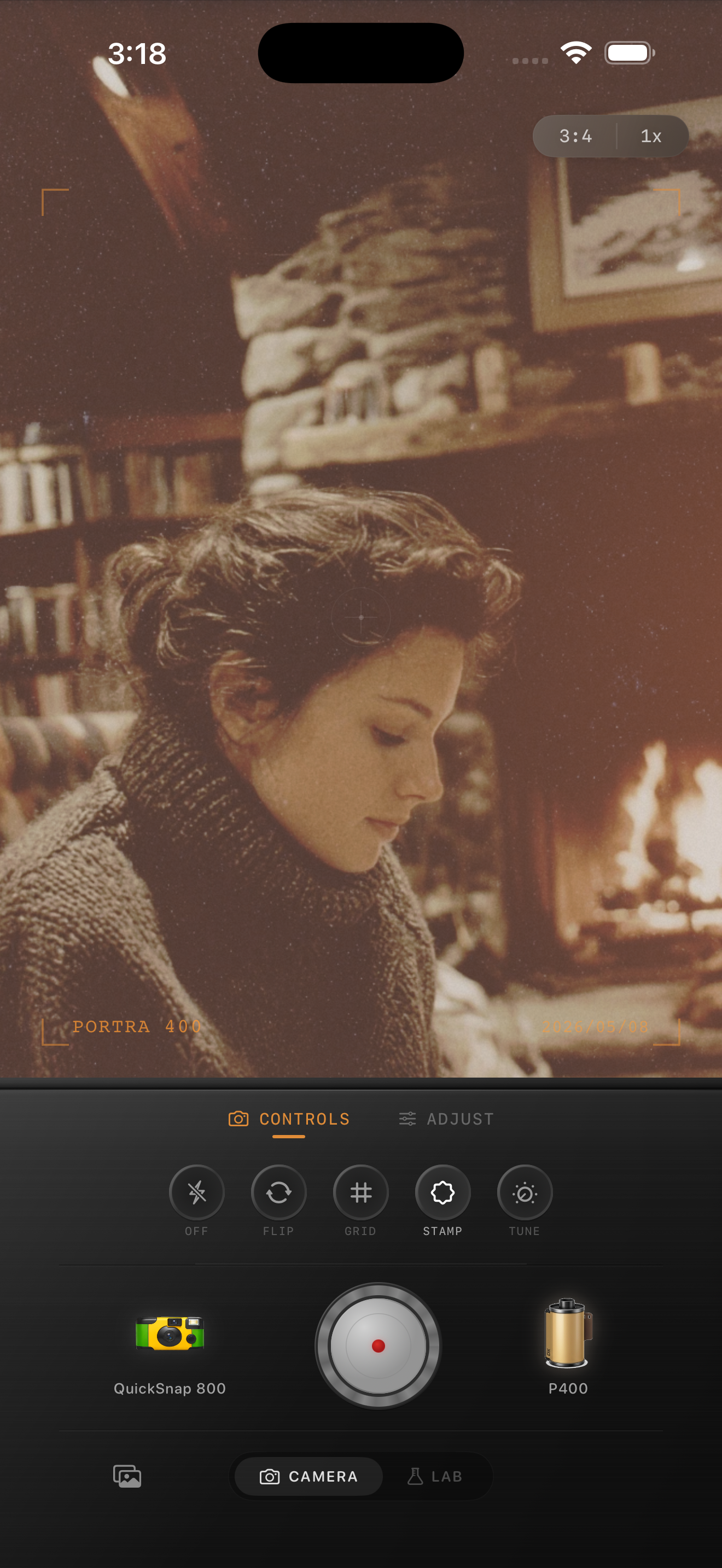
Warm light is good until the face turns one color
Candlelight portraits already have the emotional part of a film photo. You get warm highlights, darker corners, and a softer room mood before you even start editing. The problem is that iPhone processing plus a heavy film effect can make skin, wood, blankets, and walls all collapse into the same yellow-orange range.
A believable film-inspired candlelight portrait keeps the glow in the room while protecting the small color differences in a face. Cheeks, lips, shadows under the jaw, and the white of the eyes should still feel distinct instead of melting into one amber wash.
A dependable candlelight portrait baseline
Start around film intensity 72-86%, grain 24-36%, warmth +4 to +10, fade 4-8%, and vignette 4-9%. That range usually softens the digital finish while keeping enough control over skin so the portrait stays human.
If the room already has several candles, a lamp, or firelight, use less warmth than you think. The scene is already warm. The better move is usually gentler contrast and a little grain, not another heavy push toward yellow.
- Judge the edit from skin before you judge it from the room.
- Protect the brightest flame and forehead highlights from clipping flat.
- Keep grain moderate so eyes, lips, and hair stay readable.
- Use fade carefully so shadows stay soft instead of chalky.
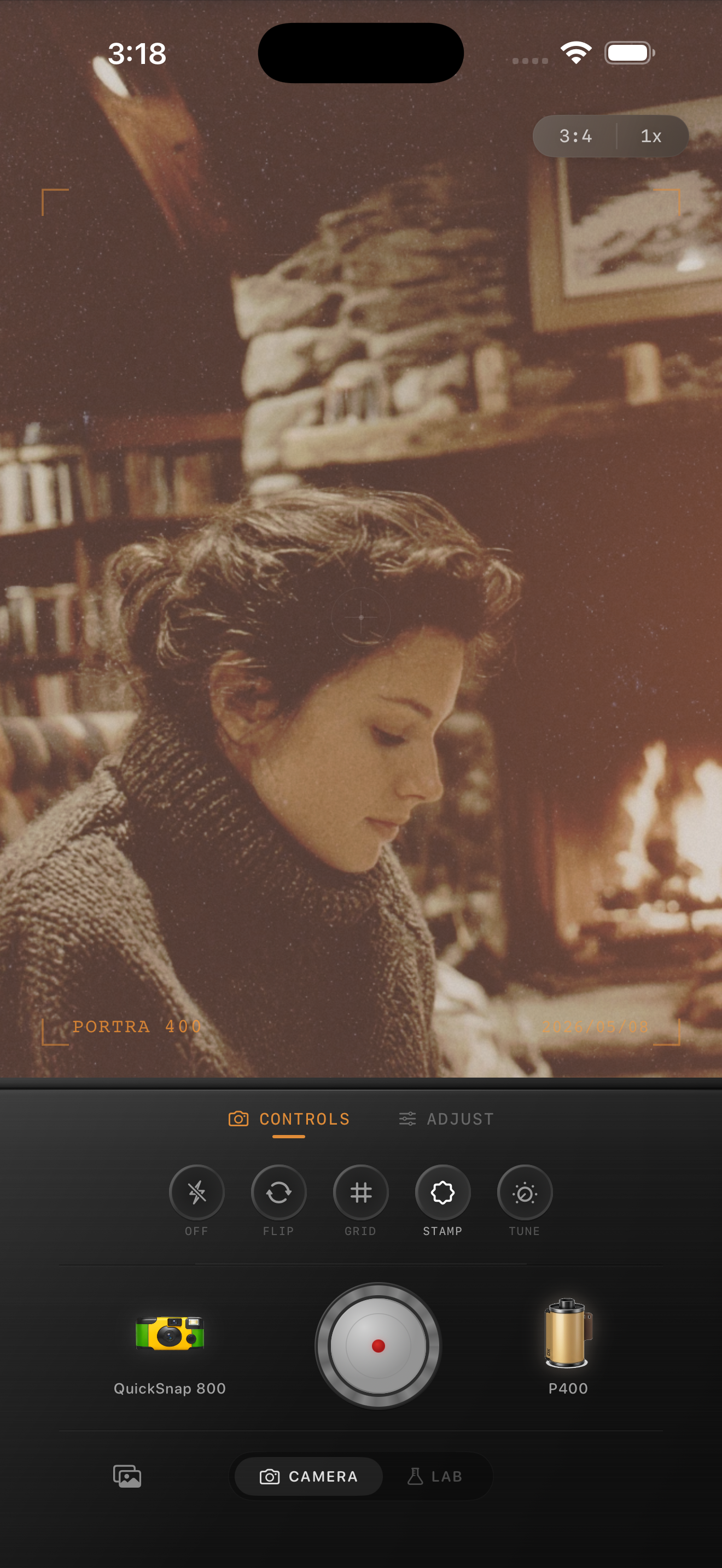
Fix yellow skin without making the room cold
The easiest mistake is over-correcting all the warmth out of the frame. That removes the exact atmosphere that made the portrait worth keeping. Instead, keep the room warm and only back off enough warmth and intensity that skin stops looking stained.
If hands, cheeks, and forehead all look equally yellow, the effect is too heavy. Pull warmth down slightly or reduce overall film intensity before you add more fade or more grain. Small corrections usually work better than dramatic ones in candlelight.
Choose a cleaner camera body for portraits
Candlelight portraits usually benefit from a cleaner 35mm-inspired or compact-film body rather than the roughest disposable option. Portraits need enough softness to feel analog, but they also need eyes and skin to stay flattering.
In Nostalgia Cam, start with the calmer body first, then tune grain, warmth, fade, and vignette until the portrait feels like a real print from a quiet evening instead of a phone photo buried under a yellow filter.
Keep candlelight warm and skin believable
Use Nostalgia Cam to shoot or import candlelight portraits, then balance camera body, grain, warmth, fade, and vignette so the room keeps its glow while faces stay natural and film-inspired.
FAQ
Why do candlelight portraits turn yellow so fast on iPhone?
Because the original scene is already warm, and extra warmth plus contrast can push skin, walls, and highlights into one narrow yellow-orange range.
Should candlelight portraits use heavy grain?
Usually no. Moderate grain works better because portraits still need readable eyes, skin texture, and flattering detail.