
Editing guide
How to Edit iPhone Snow Portraits to Look Like Film Without Gray Skin
A practical winter portrait guide for keeping snow bright, skin natural, and iPhone photos soft enough to feel like film instead of cold digital HDR.
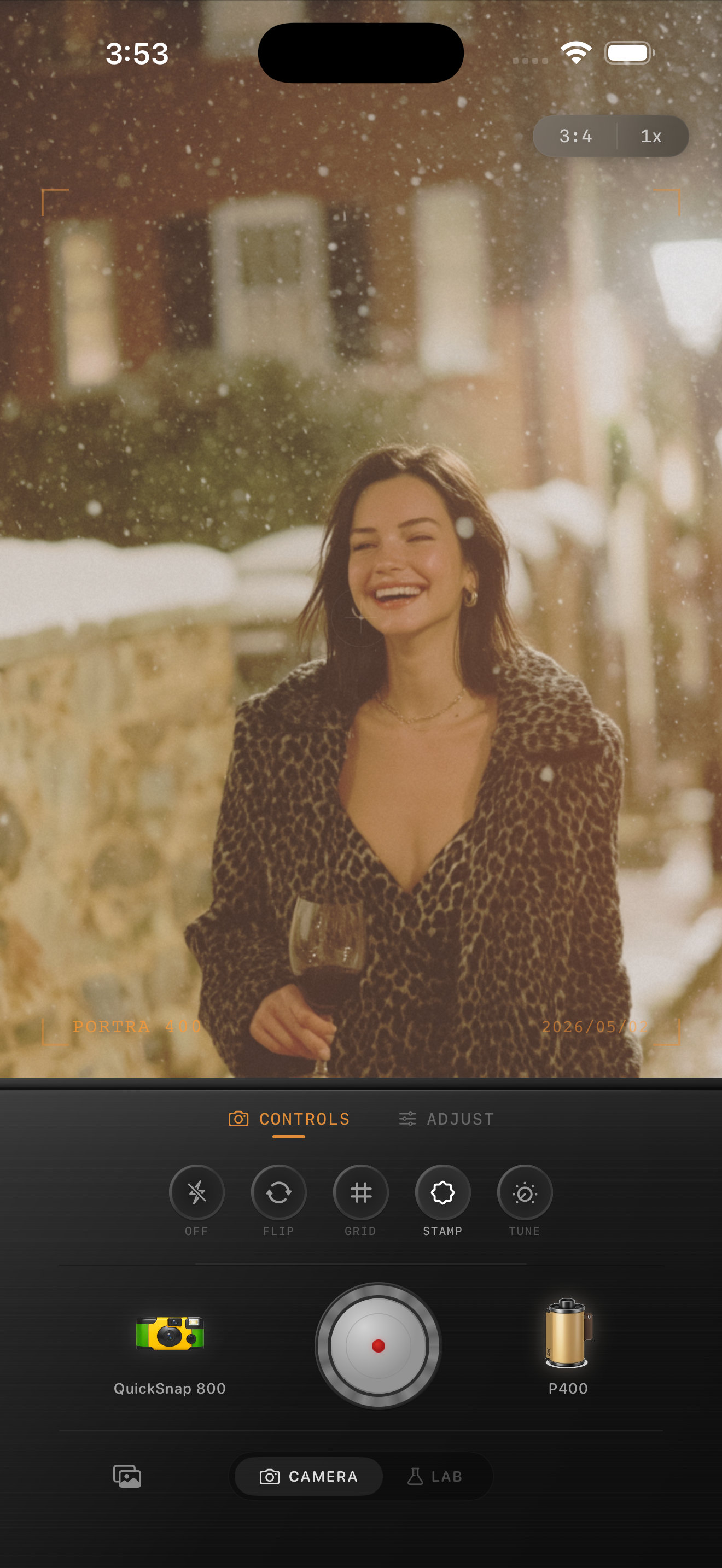
Why skin turns gray in snow photos
Snow scenes push the iPhone toward cool balance, bright highlights, and heavy shadow cleanup. When that processing meets winter skin tones, faces can lose warmth and start looking flat or gray even when the exposure is technically correct.
A film-inspired winter edit should keep snow clean without making people look drained. Real film often holds a little warmth in faces while letting the overall scene stay crisp and seasonal.
- Expose for the face first if the portrait is the subject.
- Do not over-lift shadows under hats, coats, and hair.
- Warm skin gently instead of warming the whole snowfield.
- Keep whites soft enough that snow still shows detail.
Set the photo up before you edit
If you are shooting in fresh snow, tap on the face instead of the brightest patch of sidewalk or snowbank. Pull exposure down just enough to protect the whites, then let the subject stay slightly brighter than the background.
Look for brownstone brick, coats, scarves, or bare trees in the frame. Those neutral and warm anchors make it easier to keep the edit believable once you add film color and grain.
A winter portrait settings baseline
Start with film intensity around 65-75%, warmth around +6 to +12, grain around 20-30%, fade around 4-7%, and only a little vignette. Winter portraits usually need less grain than nightlife or flash photos because the snow already gives the frame texture.
If the skin still feels gray, back off the overall coolness rather than piling on orange warmth. The best fix is usually a calmer white balance and softer contrast, not a stronger filter.
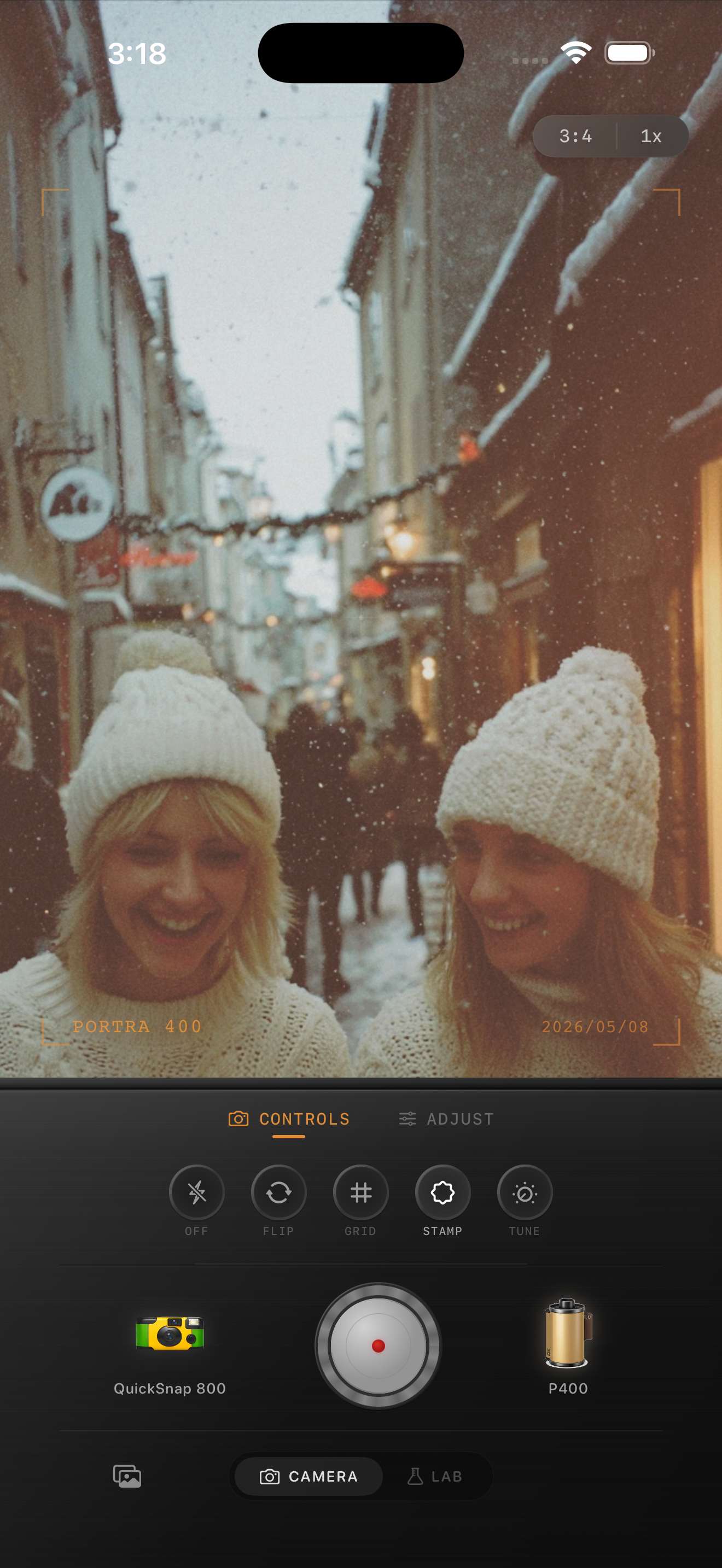
Keep snow bright without blowing it out
Many winter edits fail because they choose between pretty skin and clean snow. You can keep both if you let the highlights stay bright but not empty, and avoid crushing midtones into a flat gray band.
Film-inspired snow photos usually have a little softness in the bright areas. That softness is more convincing than ultra-white HDR snow with hard edge detail everywhere.
Aim for printed-photo warmth, not fake tan warmth
The finished edit should feel like a winter print from a real camera roll: cool air, gentle color, and skin that still looks alive. If the face starts looking orange against blue snow, you went too far.
Use texture, slightly softened contrast, and restrained grain to create the nostalgic feeling. That approach keeps the portrait natural while still making it feel less like a default iPhone file.
Make winter portraits feel less digital
Nostalgia Cam helps you balance film-inspired warmth, grain, fade, and camera character so snowy portraits keep natural skin tones and still feel like a memory.
FAQ
Why do people look gray in iPhone snow portraits?
Snow often pushes white balance cooler and makes phones over-correct contrast. That combination can drain warmth from faces and flatten skin tones.
How much grain should I use in winter portraits?
Usually less than in nightlife edits. Start around 20-30% so the portrait stays soft and clean while still losing some of the digital polish.