
Editing guide
How to Edit iPhone Portraits to Look Like Film in Open Shade
A practical open-shade film recipe for iPhone portraits: softer contrast, cleaner skin color, restrained warmth, and enough grain to make shaded daylight feel printed instead of flat.
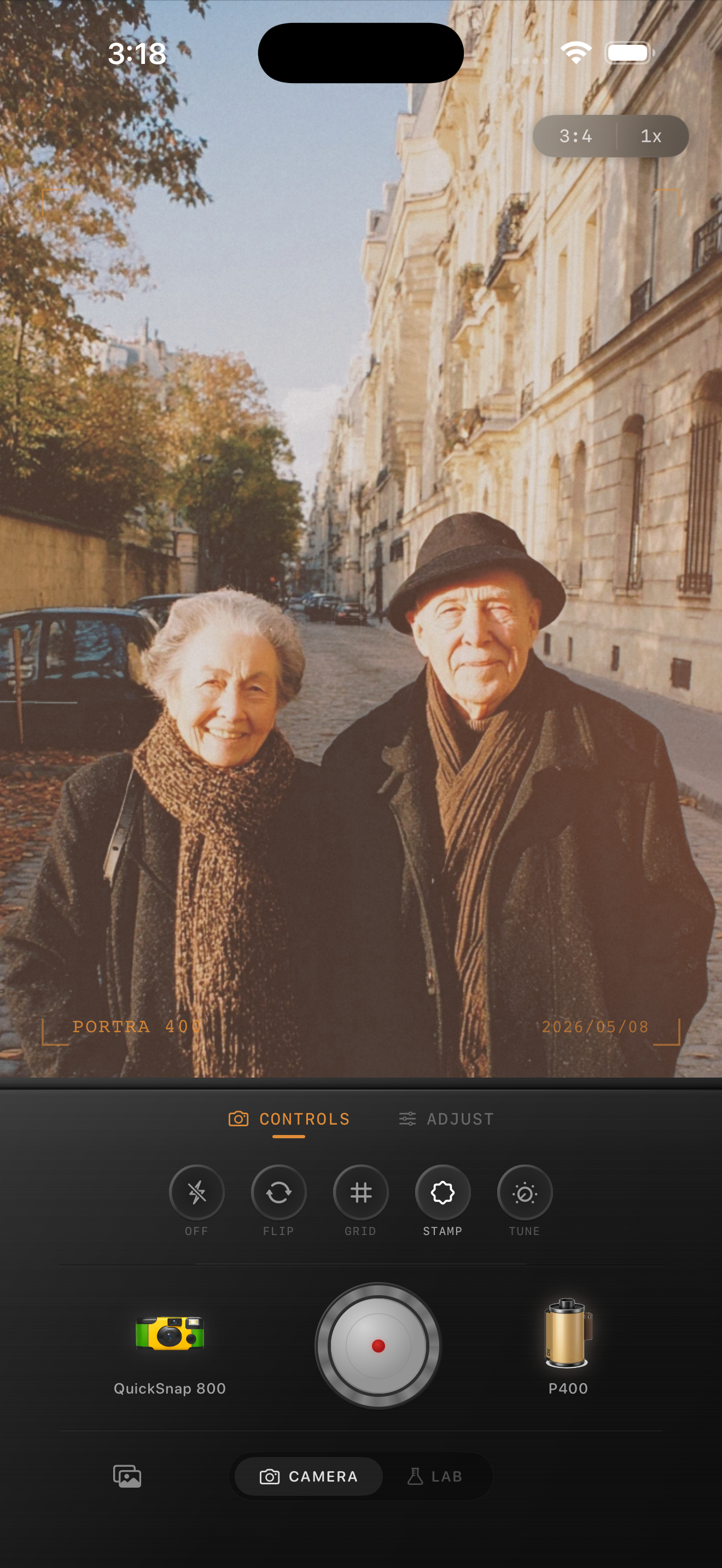
Open shade already has the right softness
Open shade is one of the easiest places to get a believable film portrait on iPhone because the light is already gentle. Faces hold detail, bright highlights calm down, and the scene usually feels quieter than full sun.
What breaks the look is not the shade itself. It is the way iPhone processing can make shaded skin look a little gray, flatten the midtones, and sharpen every pore, strand of hair, and stone wall in the background.
A reliable starting point for shaded portraits
Start around film intensity 70-84%, grain 18-30%, warmth +3 to +8, fade 3-6%, and vignette 2-6%. That range usually keeps the softness of shade while adding enough texture to make the portrait feel like a scanned print.
If the background is pale concrete, stone, or cloudy sky, stay on the lower end for warmth. If the scene has greenery, brick, or darker jackets, you can allow a little more warmth before the photo starts drifting away from natural skin color.
- Judge the edit from skin first, not from the background.
- Keep grain moderate so faces stay flattering.
- Use only a small fade so shaded skin does not go chalky.
- Let the background stay a little quiet instead of chasing extra contrast.
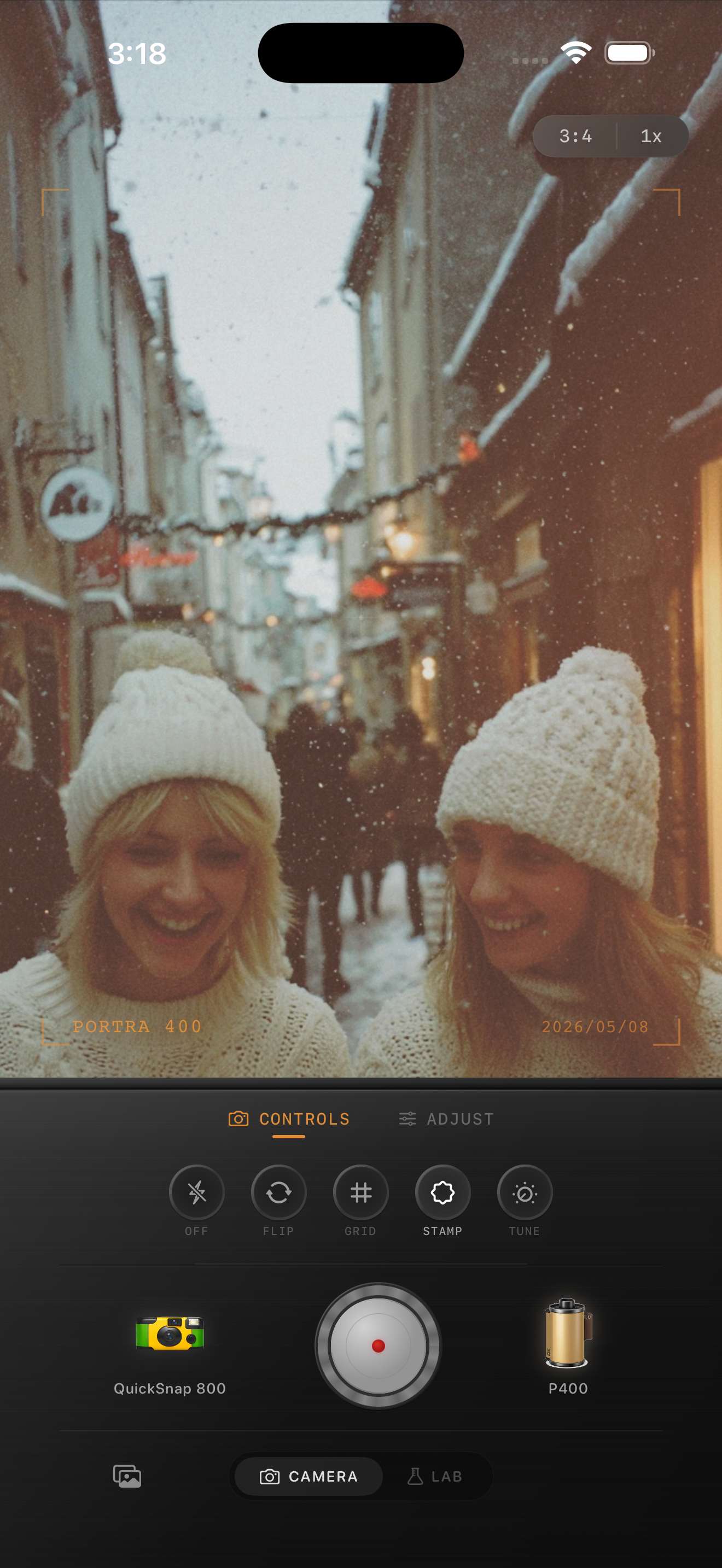
Protect skin from the usual shade problems
Shaded portraits often fail in predictable ways: skin turns slightly gray, under-eye areas get heavy, and the whole frame feels cooler than it looked in person. Fix those issues with small moves instead of trying to warm the whole image into submission.
A better film-inspired edit lifts the feeling of the portrait without erasing that it was made in shade. Keep cheeks, lips, and neutral clothing believable, then let the cooler pavement, trees, or buildings hold some of the environment.
Match the camera mood to the portrait
A cleaner 35mm-inspired body usually works best for open-shade portraits because the light is already soft. You rarely need the roughest disposable texture unless the photo is meant to feel more casual or flashier.
In Nostalgia Cam, start with the calmer body first, then fine-tune grain, warmth, fade, and vignette until the portrait feels like a real film print you would keep, not just a filtered shaded selfie.
Turn shaded portraits into film keepsakes
Use Nostalgia Cam to shoot or import open-shade portraits, then balance camera body, grain, warmth, fade, and vignette so skin stays natural and the whole frame feels softly film-inspired.
FAQ
Why do shaded iPhone portraits look flat so quickly?
Because open shade starts with low contrast and cool light. If you add too much fade or leave skin too cool, the portrait can lose the small tonal differences that make it feel alive.
Should open-shade film portraits be warmed up a lot?
Usually no. A small warmth shift is often enough. Heavy warmth can make skin, stone, and cloudy sky turn muddy instead of naturally soft.