
iPhone film look
Best Film Settings for Backlit Portraits on iPhone
A practical backlit-portrait film recipe for iPhone: protected highlights, soft contrast, natural skin, and enough grain to feel analog without turning bright edges muddy.
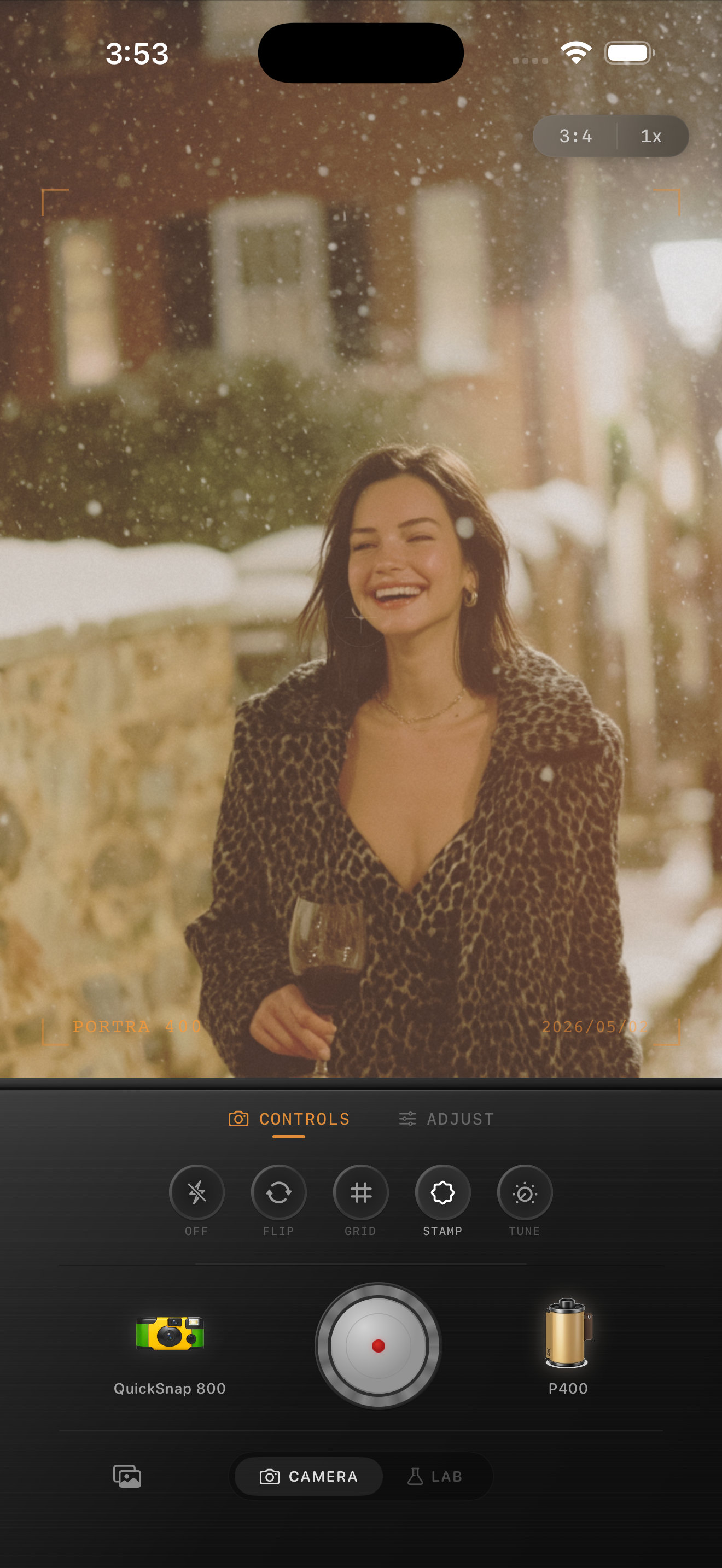
Backlight already gives you part of the film feeling
Backlit portraits often feel cinematic before you edit them. The light wraps around hair and coats, the background glows, and the iPhone can produce a little haze that already points toward an analog look.
The problem is that iPhone processing also tries to clean everything up. Highlights can turn too glossy, faces can flatten, and the whole image can feel more HDR than film. A good edit keeps the glow while calming the digital polish.
- Protect bright edges before you add grain.
- Keep contrast soft so skin does not separate harshly from the background.
- Use moderate warmth, not an orange wash.
- Let grain sit in the midtones instead of covering the whole frame equally.
- Use vignette lightly because backlit scenes already have natural focus.
A dependable starting recipe
Start around film intensity 70-82%, grain 20-32%, warmth +4 to +9, fade 4-8%, and vignette 2-6%. That range usually keeps the portrait soft and printed without making the bright rim light look dirty.
If the light is very strong and pale, lower grain first rather than lowering film intensity. Backlit portraits can carry gentle fade, but too much texture in the highlights is what usually breaks the illusion.
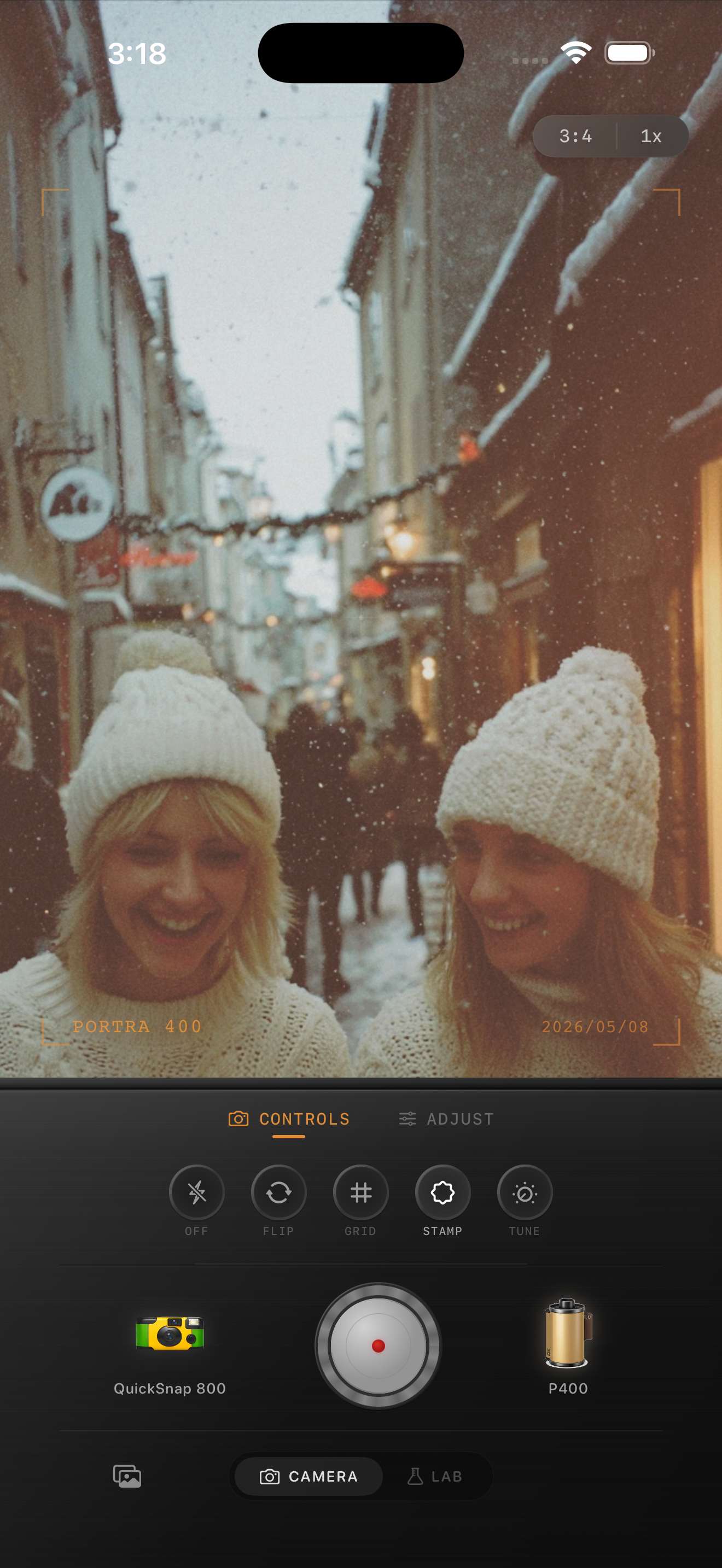
Edit faces before you judge the glow
Bright edges are dramatic, so it is easy to finish the edit based on the halo around the subject and forget the face. Film-style portraits still need believable skin and enough detail in the eyes, coat, or hair to hold the frame together.
Once the face looks right, the rest of the analog mood usually comes from small tweaks: a little grain, a little warmth, and highlight roll-off that feels less clinical than the default iPhone file.
Use a cleaner camera body for this look
Backlit portraits usually work better with a cleaner 35mm-inspired body or an everyday compact-film mood than with a rough disposable treatment. Too much built-in damage can make the bright rim light look smeared instead of photographic.
In Nostalgia Cam, choose the camera body first, then tune grain and fade until the portrait feels like a scanned print or a well-kept album photo rather than a sharpened phone capture.
Keep the glow and lose the HDR feel
Use Nostalgia Cam to pair a cleaner film-style camera body with controlled grain, warmth, fade, and vignette so backlit portraits stay soft, bright, and natural instead of overly processed.
FAQ
Should backlit portraits use a lot of grain to look like film?
Usually no. Backlit scenes already have bright edges and visible atmosphere, so too much grain can make the highlights look muddy. Moderate grain is usually enough.
Why do backlit iPhone portraits sometimes look fake after editing?
The most common reason is pushing texture or warmth into the highlights too hard. A believable film-style edit protects the glow, keeps skin natural, and softens contrast instead of piling on effect.