iPhone film look
How to Make iPhone Photos Look Like Instant Film
A practical instant-film-style iPhone recipe: softer contrast, brighter flash color, gentle fade, and enough frame texture to feel like a fresh instant print instead of a generic preset.
Instant film feels printed right away
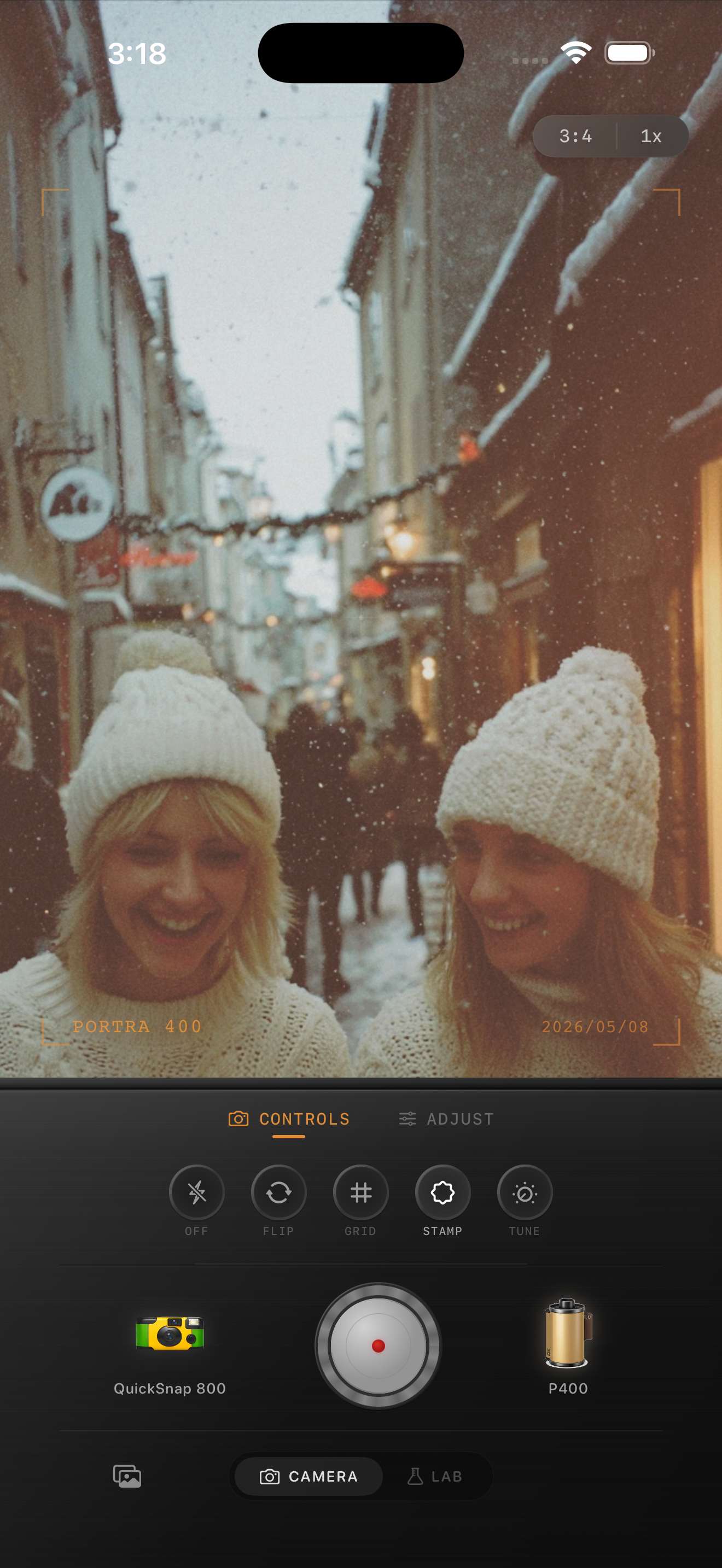
What people usually want from an instant-film-style edit is not heavy damage or extreme grain. It is the feeling of a small physical print: slightly softer detail, gentle contrast, friendly color, and a flash response that feels bright without looking clinically sharp.
That is why instant-film-style edits usually work best on people, dinners, travel snapshots, snow, and little in-between moments. The photo should feel immediate and personal before it feels vintage.
- Keep contrast soft so highlights do not feel digital.
- Use moderate grain rather than coarse disposable-style texture.
- Add a little fade so shadows feel printed instead of HDR-clean.
- Keep color cheerful, but avoid over-warming skin.
- Use vignette lightly because instant prints usually feel open, not tunnelled.
A dependable instant-film-style settings baseline
Start around film intensity 70-84%, grain 20-32%, warmth +4 to +10, fade 6-12%, and vignette 2-6%. That range usually softens the modern iPhone finish while keeping the photo bright enough to feel like a fresh instant print.
If the image already has strong flash or snow brightness, lower warmth before lowering film intensity. Instant-film-style photos usually look better when whites stay clean and the color sits more in the midtones than across the whole frame.
Choose scenes that already feel like a keepsake
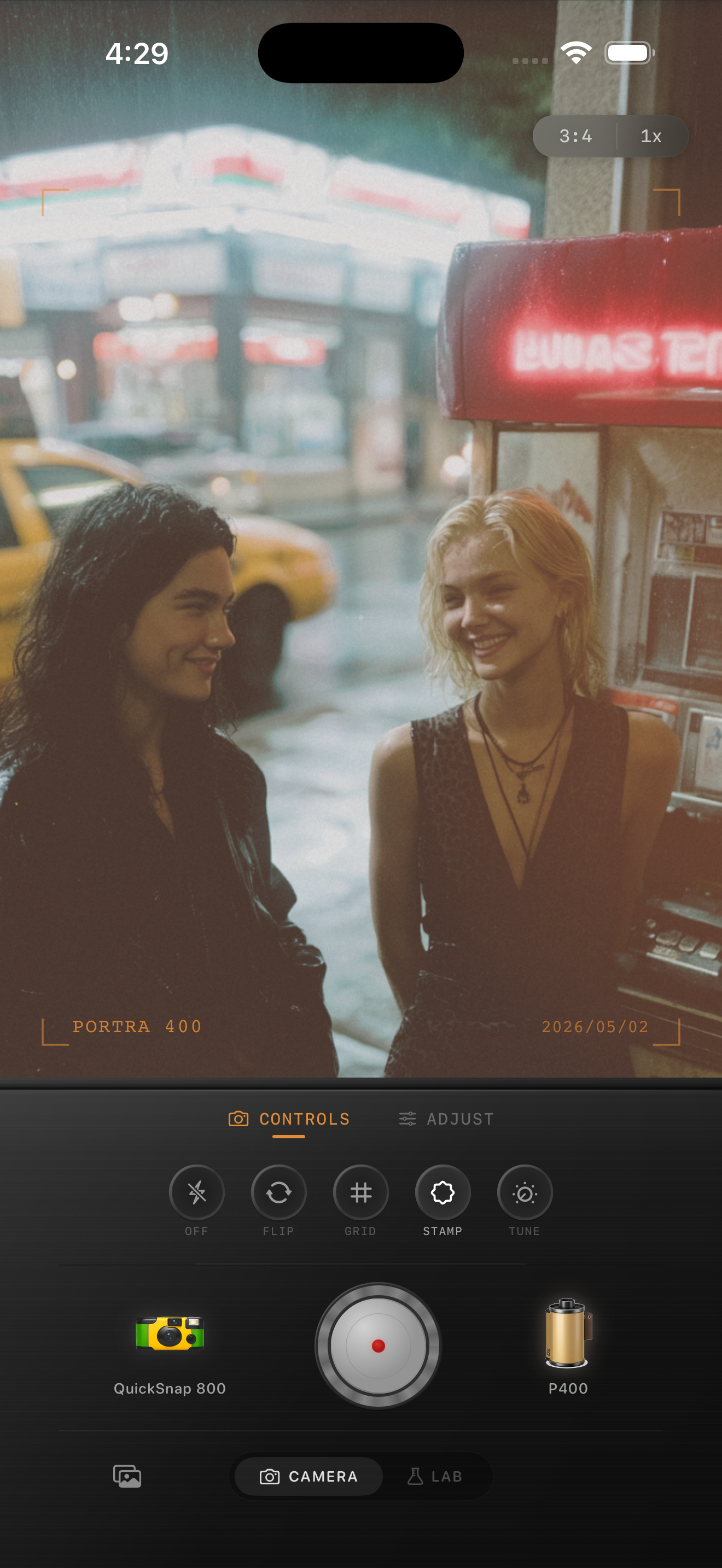
Instant-film-style edits are strongest when the subject already feels casual and close: friends shoulder to shoulder, a table full of food, hotel-room snapshots, travel side streets, or a quick photo before heading home. Highly polished product shots usually do not need this treatment.
If the scene feels too formal, loosen the color and texture rather than adding more damage. A gentle print feeling is usually more convincing than trying to fake age.
Use the app like a camera, not only an editor
This look benefits from capture choices as much as slider choices. Direct flash, simple framing, and one clear subject usually get you closer than chasing the effect afterward on a flat, overlit photo.
In Nostalgia Cam, start with a camera body that feels compact and friendly, then tune grain, warmth, fade, and vignette until the image feels like a print you would hand to someone, not just another phone filter.
Build an instant-film-style look in Nostalgia Cam
Use Nostalgia Cam to pair compact camera bodies with film-style color, natural grain, soft fade, and full-resolution export so your iPhone photos feel like instant prints without relying on one canned effect.
FAQ
Should instant-film-style edits use as much grain as disposable camera edits?
Usually no. Instant-film-style photos often look better with softer, finer texture and brighter color than rough disposable-style grain.
Do I need a white frame to make a photo look like instant film?
Not necessarily. The core look usually comes from softer contrast, bright print-like color, and gentle fade. A border is optional, not the main ingredient.