
Editing guide
How to Edit iPhone Holiday Card Photos to Look Like Film Without Washed-Out Snow
A practical iPhone film-editing guide for holiday card photos: keep snow and pale clothing detailed, faces natural, and the final image soft without looking faded.
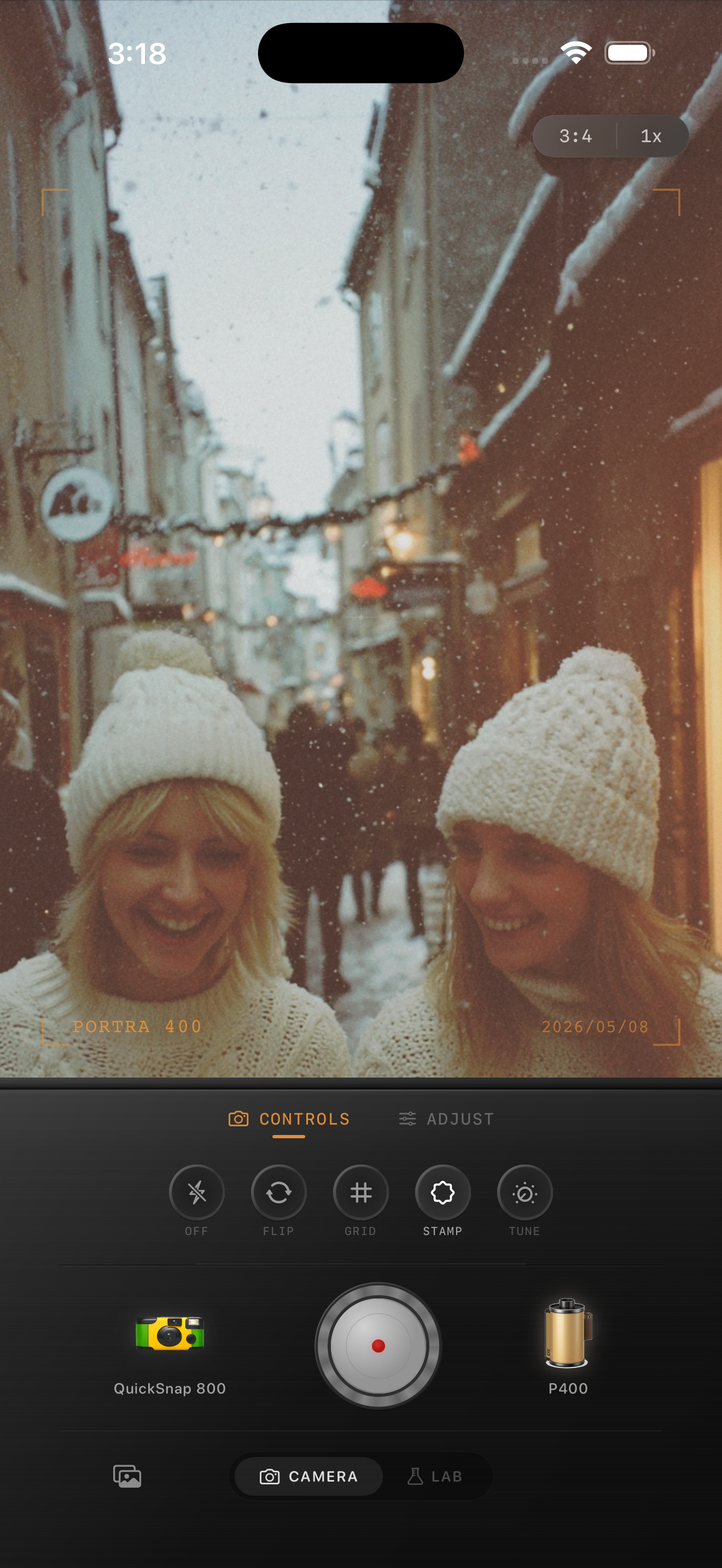
Start with a frame that still has detail in the pale parts
Holiday card photos often combine bright snow, pale skies, light coats, and faces that need to remain recognizable at a small printed size. Before editing, compare nearby frames and choose one where the snow has some texture, the brightest clothing still has shape, and the expression is clear. A film-inspired finish can soften the digital edge, but it cannot restore detail from a white area that is already completely clipped.
Keep the original beside the edit while you work. The goal is not to make every white area gray. It is to preserve enough variation that snow, a scarf, a sweater, and the sky do not merge into one flat background.
- Check snow near the subject instead of judging the whole frame at once.
- Compare a pale coat or scarf with the brightest part of the sky.
- Make sure faces still lead when the image is viewed small.
Keep warmth close to faces and winter light
A little warmth can make a winter card feel inviting, but broad warmth quickly turns snow cream-colored and cheeks orange. Let the warmer feeling live mostly in skin, brick, wood, window light, or a scarf that was already warm in the original photo. Keep the snow and overcast sky closer to neutral so the scene still feels like winter.
Use a face, a pale neutral detail, and a patch of snow as three reference points. If all three start moving toward yellow together, reduce the broad warmth or film intensity before you add grain or fade.
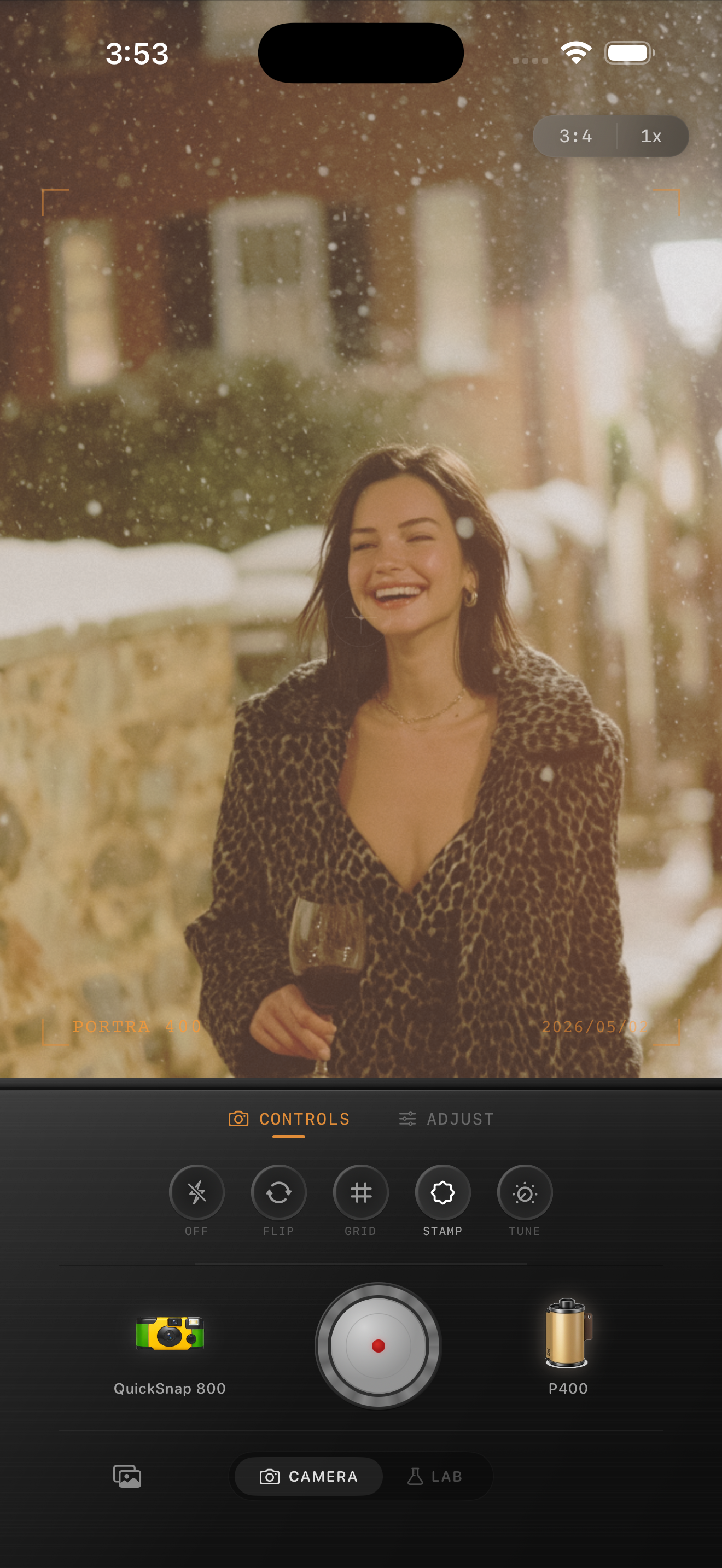
Use a clean film baseline before adding texture
Start around film intensity 58-72%, grain 12-24%, warmth +2 to +7, fade 1-5%, and vignette 1-5%. This range can take the sharp iPhone finish down without making snow sandy or washing out the edge of a coat. If the photo is in direct sun, begin lower on fade; if it is overcast, begin lower on warmth.
A cleaner compact-film or 35mm-inspired camera body usually works better than a rough disposable effect for a card photo. The image needs to reproduce clearly in a message, print, or small card. Let the family, friends, or setting carry the memory instead of relying on heavy scratches, large grain, or dark corners.
Check the export at card size before you finish
Save a version, view it away from the sliders, and zoom out until the faces are closer to the size they will appear on a card. You should notice the people first, then the winter setting, and only then the softer film character. If the first impression is gray snow, orange skin, or obvious grain, return to the quieter version.
If you are adding text later, leave a calmer area of sky, snow, or wall around it instead of forcing the subject into every corner. A card photo can be simple: a clear expression, a little room to breathe, and a finish that still looks natural when shared.
Give a winter card photo a softer finish
Import a favorite holiday card photo into the Nostalgia Cam Lab, compare camera bodies and film looks at moderate intensity, then refine warmth, grain, fade, and vignette. Check a face, a pale detail, and a patch of snow before saving the version that still feels like the day.
FAQ
Why does snow look washed out after I add a film effect on iPhone?
A strong fade, bright exposure, or broad warmth can remove the small tonal differences that make snow look dimensional. Start with a frame that already has some texture, then use a gentler film intensity and only a little fade.
Should holiday card photos use a lot of film grain?
Usually no. Fine grain can soften the clean digital finish, but heavy texture can make snow, pale clothing, and small printed faces look dirty. Add it after color and highlights are balanced.
How can I keep a holiday card photo warm without yellow snow?
Keep warmth selective. Compare a face, a pale neutral detail, and the snow after every larger adjustment. If all three shift yellow, lower the overall warmth or film intensity rather than cooling the entire picture aggressively.